Project Members
Prerequisites
- The current account is a project Admin or platform Admin.
- The target user has an account created on the platform.
Steps
-
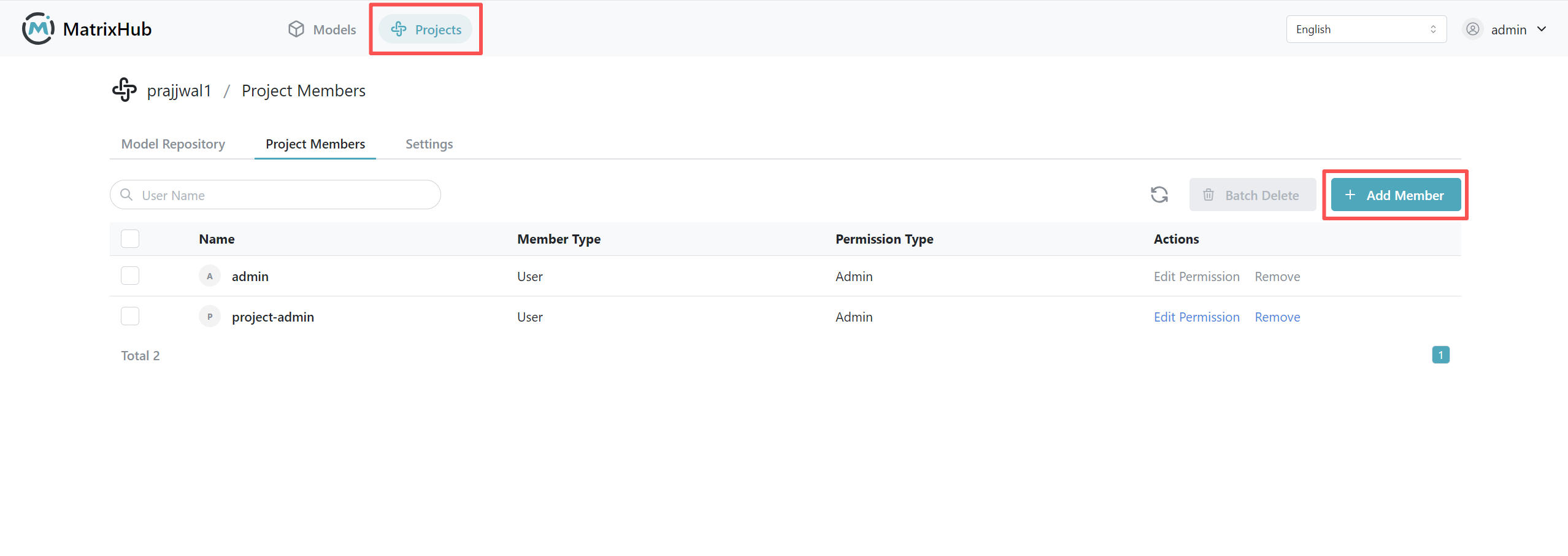
Log in to MatrixHub, go to Project Management, select the target project, and click the Project Members tab.
-
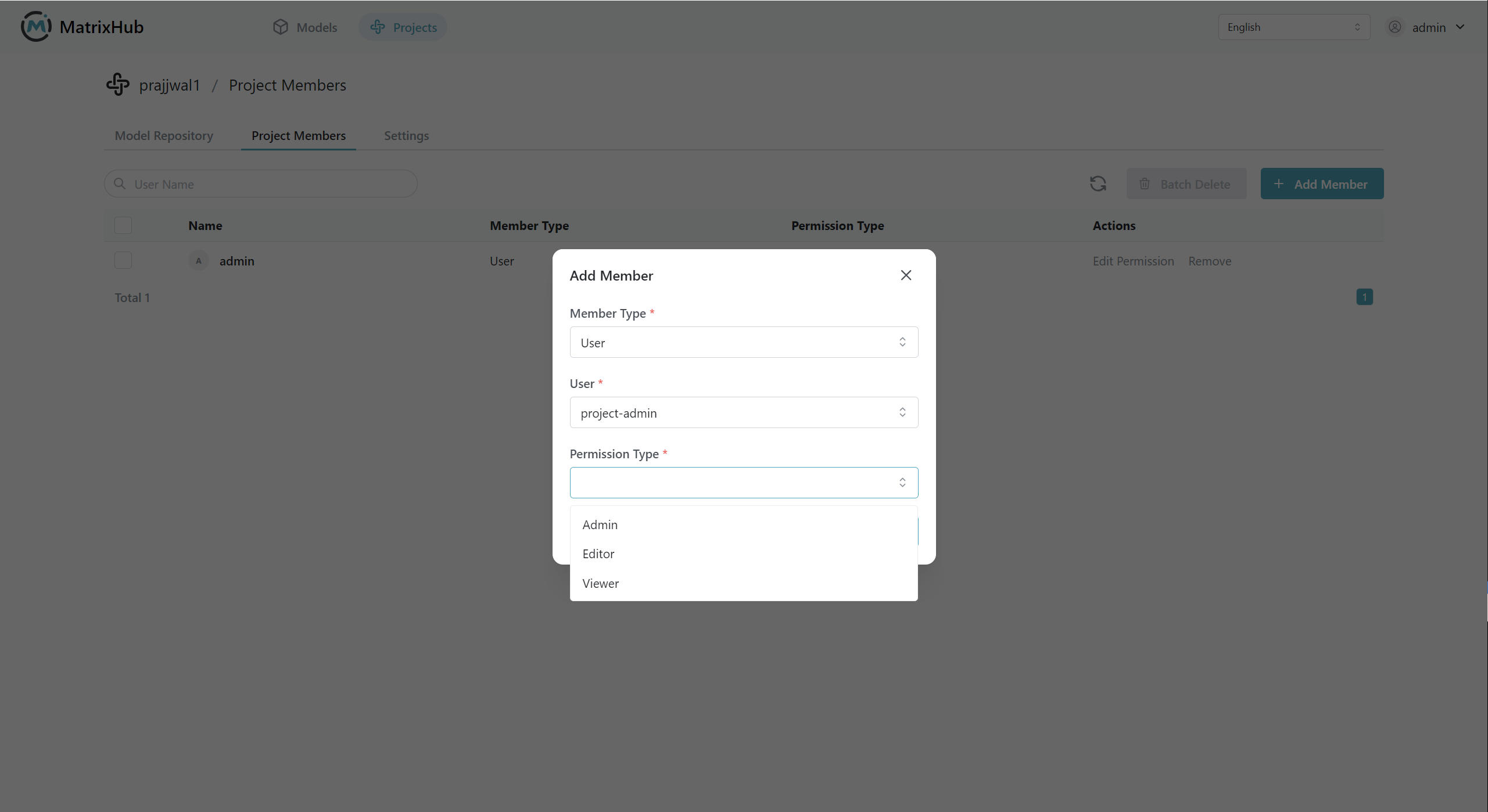
Click Add Member, select the member type, user, and permission type in the popup, then click Confirm.
-
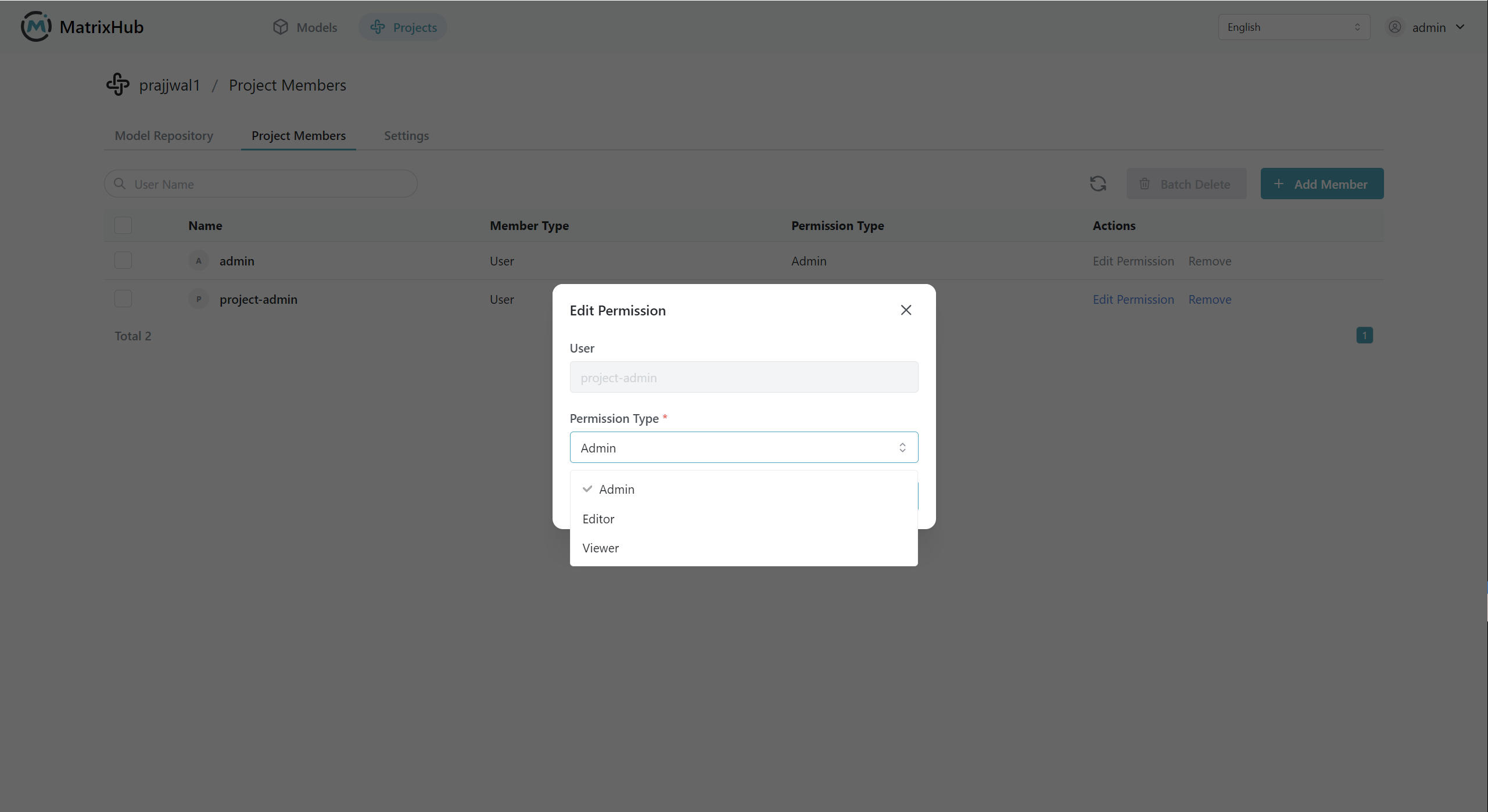
Locate the target user in the member list, click Edit Permissions, select a new permission type, and confirm.
Configuration Parameters
| Parameter | Description |
|---|---|
| Member Type | Currently supports selecting User. |
| User | The account to be added to the project. |
| Permission Type | Admin: Can manage members and maintain project resources; Editor: Can upload, download, and delete models and datasets; Viewer: Can only view and download models and datasets. |
Role Permissions
| Role | Menu Permissions | Core Function Permissions | Special Notes |
|---|---|---|---|
| Platform Admin | Can view all menus | Can use all platform functions | Highest platform permission |
| Project Admin | No platform settings menu | Add/edit/remove members, upload/download/delete models and datasets, delete project | Cannot remove themselves from the current project |
| Project Developer | No platform settings menu | View members, upload/download models and datasets | No permissions to delete models or datasets, manage members, or delete projects |
| Project Viewer | No platform settings menu | View members, download models and datasets | No permissions to upload or delete models and datasets, or manage members |
| Regular User (Non-member) | No platform settings menu | Can view and download models/datasets of public projects | Private projects are hidden by default |
Visibility Supplement
- Only project Admins and platform Admins can modify project settings.
- Project Developers and Viewers can view settings but cannot modify them.
- Non-members cannot see the project content by default (except for public resources).