Robot Accounts
Robot accounts are non-human identities intended for automation, CI/CD jobs, and service-to-service access. Each robot account has its own token, validity period, enabled state, and fine-grained system and project permissions.
Prerequisites
- Log in to MatrixHub with a platform administrator account.
- Identify the minimum system and project permissions required by the automation.
- If project permissions apply only to selected projects, create those projects before creating the robot account.
Robot Account List
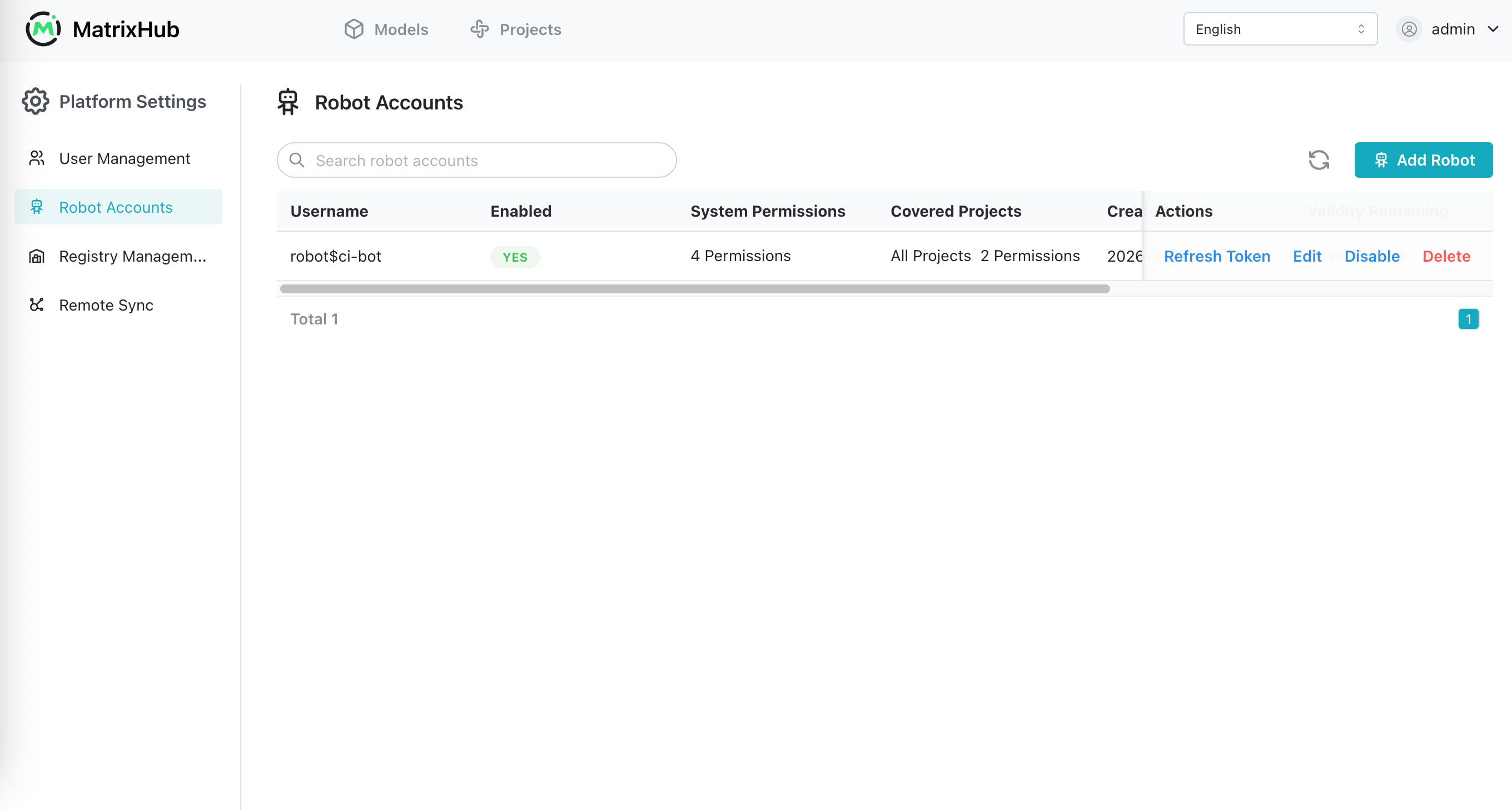
Go to Platform Settings -> Robot Accounts. The list displays the following information:
| Parameter | Description |
|---|---|
| Username | The account identifier. MatrixHub automatically adds the robot$ prefix to the name entered during creation. |
| Enabled | Whether the account can authenticate and access resources. |
| System Permissions | The number of configured platform-level permissions. |
| Covered Projects | Whether project permissions apply to all projects or selected projects, together with the number of configured project permissions. |
| Created At | The time the robot account was created. |
| Validity Remaining | The remaining validity period, Never Expires, or Expired. |
| Description | The purpose or usage description of the account. |
| Actions | Supports Refresh Token, Edit, Enable/Disable, and Delete. |
Use the search box to filter robot accounts by name.
Create a Robot Account
-
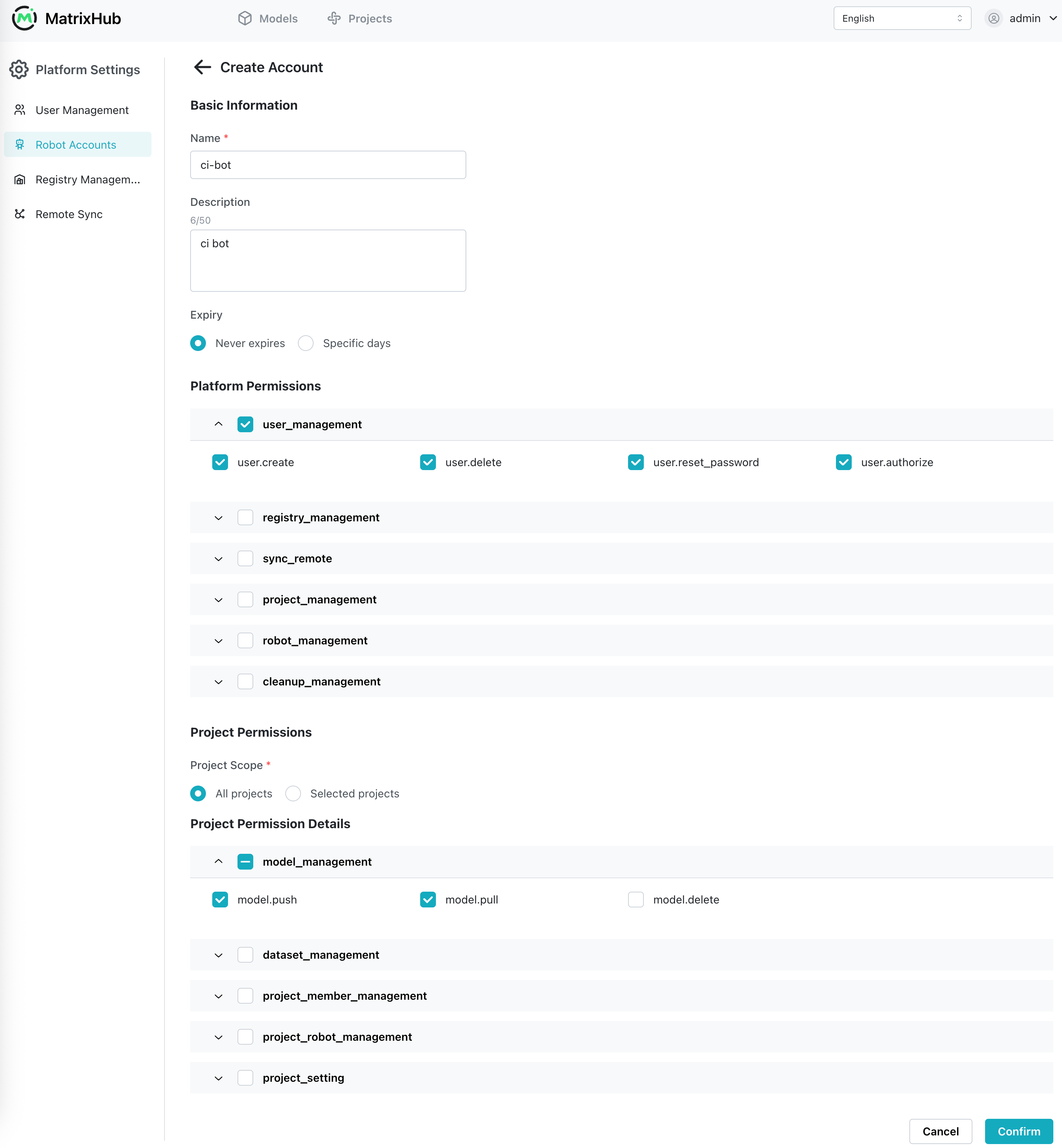
On the Robot Accounts page, click Add Robot.
-
Under Basic Information, enter a unique name and an optional description.
-
Set Expiry to Never expires or Specific days. When using a specific duration, enter at least
1day. -
Under Platform Permissions, select only the system operations required by the robot account.
-
Under Project Permissions, choose a project scope:
- All projects: The selected project permissions apply to every project.
- Selected projects: Select one or more existing projects. The configured project permissions apply only to those projects.
-
Under Project Permission Details, select the required permissions for models, datasets, project members, project robot accounts, and project settings.
-
Click Confirm. New robot accounts are enabled immediately.
After the account is created, MatrixHub displays its token once. Copy it immediately and store it in a secret manager or another secure location. The token cannot be viewed again after the dialog is closed.
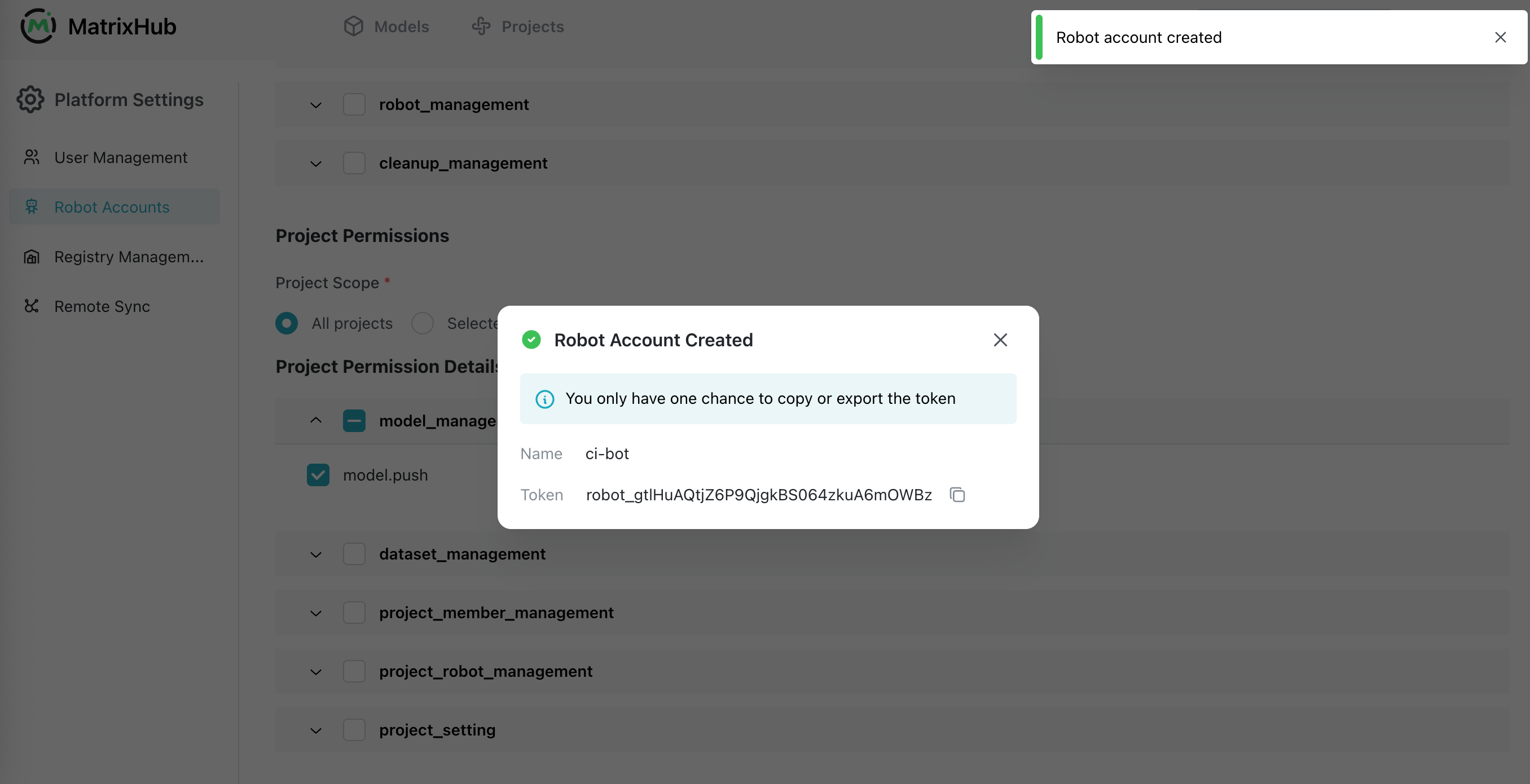
The account username is robot$<name>. For example, entering ci-bot creates the username robot$ci-bot.
Use a Robot Account
Use the robot username and token as HTTP Basic Authentication credentials when calling the MatrixHub API. The following example creates a user and therefore requires the robot account to have the corresponding user-management permission:
curl --request POST 'http://<matrixhub-endpoint>/api/v1alpha1/users' \
  --header 'Content-Type: application/json' \
  --user 'robot$ci-bot:<robot-token>' \
  --data '{
    "username": "example-user",
    "password": "<initial-password>",
    "is_admin": false
  }'
For model operations with the Hugging Face CLI, configure the MatrixHub endpoint, run hf auth login, and paste an automatically generated robot token when prompted:
export HF_ENDPOINT="http://<matrixhub-endpoint>"
hf auth login
hf download <project>/<model>
The request succeeds only when the account is enabled, its token has not expired, and its assigned permissions cover the requested operation and project.
Edit a Robot Account
- Find the account and click Edit.
- Update its description, expiry, system permissions, project scope, or project permissions. The account name cannot be changed.
- Click Confirm. Permission changes take effect immediately.
Follow the principle of least privilege: grant only the permissions and project scope required by the automation.
Refresh a Token
-
Find the account and click Refresh Token.
-
Choose one of the following methods:
- Keep manual specification disabled and click Refresh Token to let MatrixHub generate a new token.
- Enable manual specification, then enter and confirm a token containing 8–20 characters, including at least one uppercase letter, one lowercase letter, and one number.
-
Copy the new token from the success dialog and update every client that uses the account.
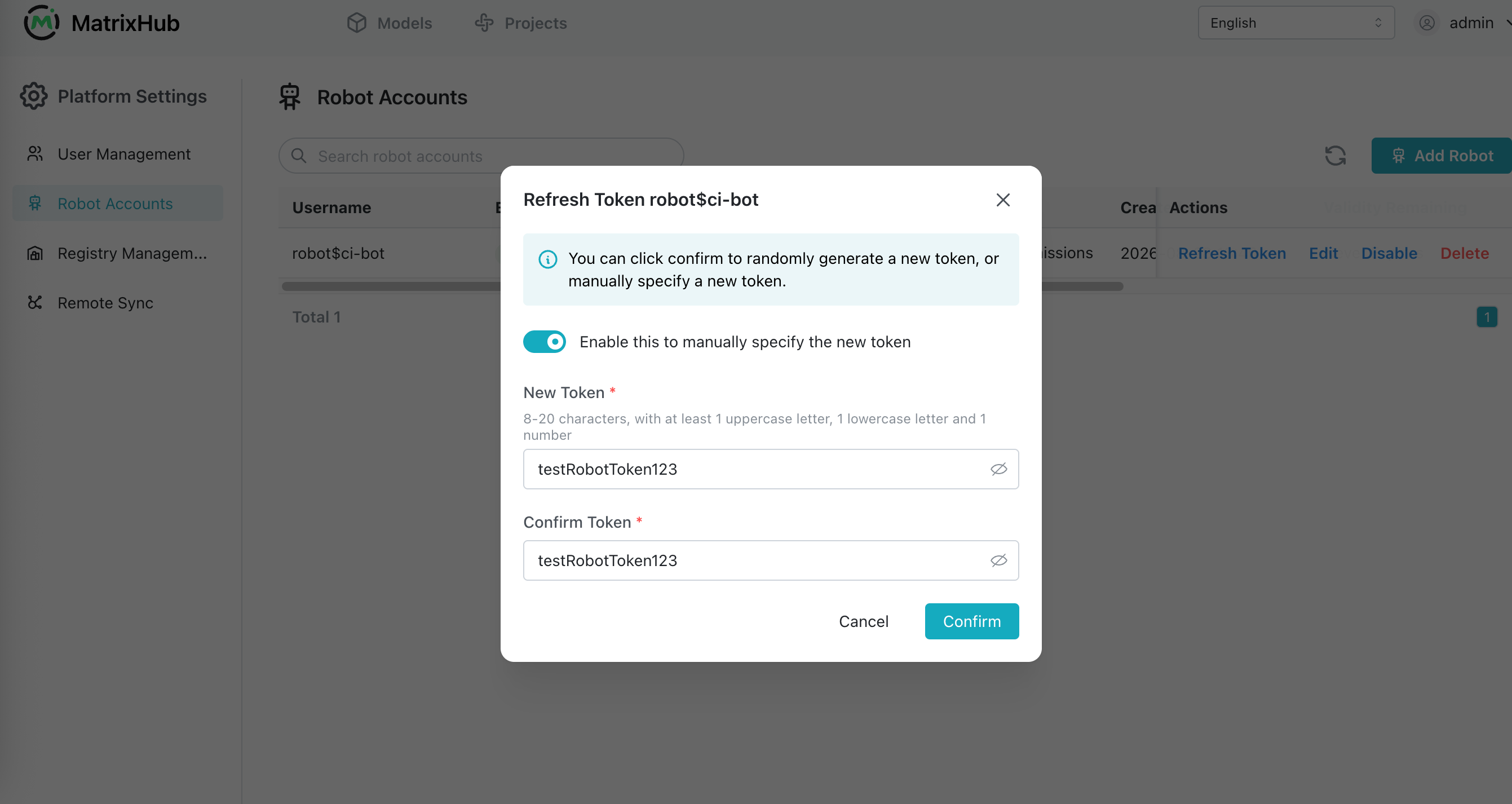
Refreshing the token invalidates the previous token immediately. Token-only clients such as the Hugging Face CLI require an automatically generated robot token; custom tokens should be used with the robot username through HTTP Basic Authentication.
Enable, Disable, or Delete an Account
- Disable: Click Disable and confirm. Authentication with the account stops immediately, while its configuration remains available.
- Enable: Click Enable and confirm. The account can authenticate again if its token is still valid.
- Delete: Click Delete and confirm. The account and its credentials are permanently removed.
Disabling, deleting, or refreshing a robot account can interrupt automation that uses its token. Update or stop dependent jobs before performing these operations.
Configuration Parameters
| Parameter | Description |
|---|---|
| Name | Required and unique. MatrixHub stores and displays it with the robot$ prefix. It cannot be changed after creation. |
| Description | Optional description of the account's purpose, up to 50 characters. |
| Expiry | Never expires or a validity duration of at least 1 day. Expired accounts cannot authenticate. |
| Platform Permissions | Fine-grained permissions for platform-level operations such as user, registry, synchronization, project, robot-account, and cleanup management. |
| Project Scope | Applies the selected project permissions to All projects or Selected projects. |
| Projects | Existing projects covered when Selected projects is used. |
| Project Permissions | Fine-grained permissions for model, dataset, member, project robot-account, and project-setting operations. |
| Token | The secret used to authenticate the robot account. It is displayed in full only after creation or token refresh. |